Showing posts with label widget. Show all posts

Activate the video call on facebook

7:38 PM

(3) Comments


a few days ago a fan of phage technology futures drop on this page and he asked about the video call   How to Activate the video call on facebook chat, so we are familiar with social networking it's this one, social networking built
by a very talented young man, well just go ahead with the increasing number of social networks are popping up now, facebook also does not want to lose all the social networking always recycle and always develop
their products for the good of their respective networks.

well today I will discuss about the video call is in the facebook chat, which is a skype video call like we can talk with our main opponent, or even other people that much everywhere just by relying on facebook, but the problem is the video call already exist but most people do not understand to use the video call. never to use the video call is we first have to install a plugin or often called softwere to support this facility FacebookVideoCall namely,
to download it just click the following link Download Video call softwere, (This way is the way that I would suggest a more effective way of manual) well after that you can use this service for free, but of course the laptop or your computer is already available camera or often called a webcam. 

 to install automatically just click the video icon on the chat and then after that Select the setup as shown below, wait a while, a video call you succeed in doing

  
that it may be useful, thank you for your visit ..

see more
How to hide the page owners on facebook
How to Create a Timeline on Facebook

Read more >>

how to add a Repository

5:25 AM

(0) Comments


hello everyone, after a previous post, which of course also discusses ubuntu, this time I'll post how to add repository, this post I made ​​after looking everywhere finally stuck in his blog mas Boja, this post I created primarily to help rema
stering job and at the request of my friends, of course, with this I hope the friends linuxer better understand,and one thing I wanted to add thanks for Cambodia which already provides its ways, well just go ahead, that we want to add today the local repository for ubuntu 10.04Lts
Ubuntu - Ubuntu 10.04 comes with many packages that have been included with it.However, not everything we want or what we need we can get. Installer Ubuntu desktopversion, for example, has dilengkapai sharing of the application package, but usually is the application of a general nature. Then if we can not add their own applications that we
want? ... can certainly, way is to install an application package that we want manually.10:04 Ubuntu repositories has provided thousands of application packages that we can use. But to be able to install the application, it takes an internet connection to connect to the server Ubuntu repositories.

For users of Ubuntu 10.04 but has no direct Internet connection, you need not worry, youcan install the packages Ubuntu applications by adding their own local repository that you can save to CD / DVD or on your computer hard disk. All you need is a package ofextras Ubuntu 10.04, you can get by downloading their own way through the cafe ororder a CD / DVD extras Ubuntu 10.04. How to add your own local repository that? ..The following are ways you can try to do;


We will convey how to add
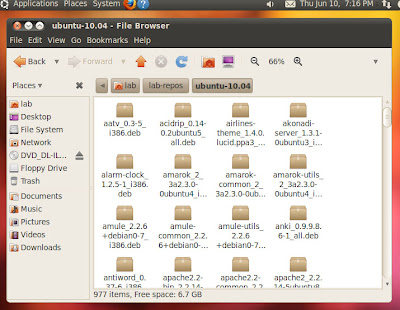
a local repository that is stored on a hard drive. Please copyall the extras Ubuntu 10.04 application package that you have into your hard disk, in this example we store it in/home/lab/lab-repos/ubuntu-10.04/

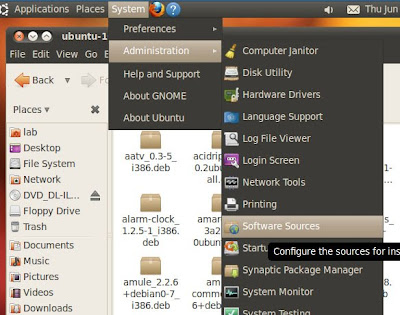
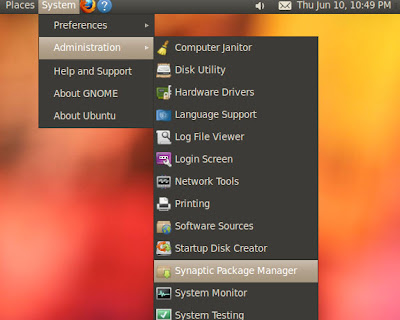
Next, go to system>Administration>Software Sources to run aplikasi
"Software Sources"...


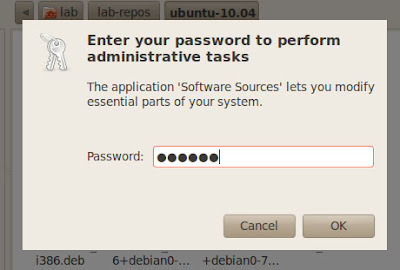
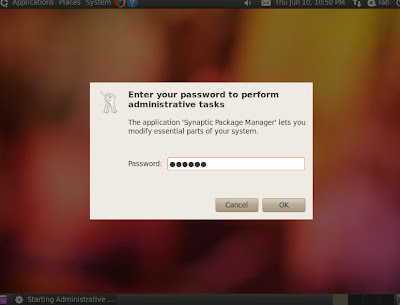
Please enter your password when prompted ...

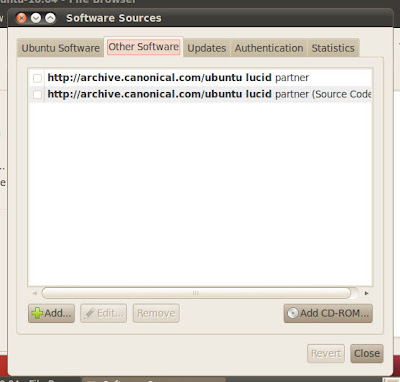
Once the Software Sources window opens, please remove all the check checboxcontained on the tab "Ubuntu Software" (we assume you have absolutely no internetconnection). After that please you to the second tab "Other Software"

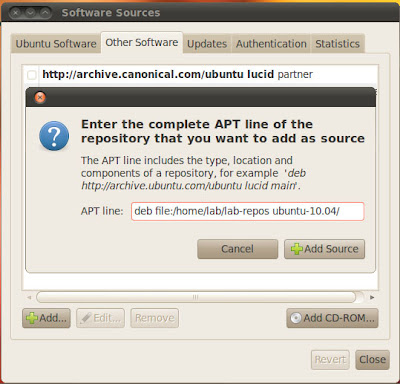
Add the source of new software by pressing the "Add". In the dialog window thatappears, fill with APT line like this ..
deb file:/home/lab/lab-repos ubuntu-10.04/

Adjust to the location where to save the application package extras that you have ... then press the "Add Source" to add ..

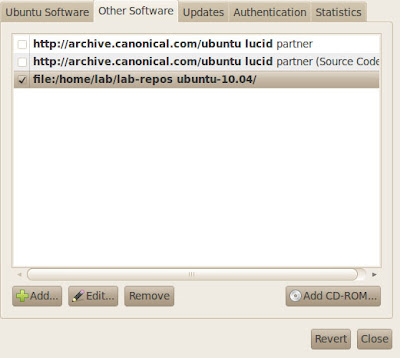
Source software has managed to add new. Press the "Close" to continue the nextprocess ...S

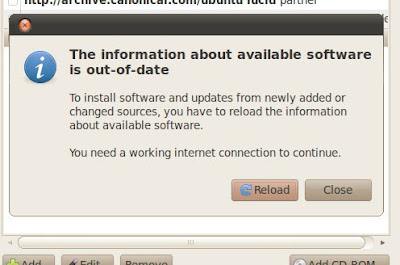
Next you will be asked to do a refresher on changes to the software source. Press the "Reload" to update the Ubuntu repositories ...

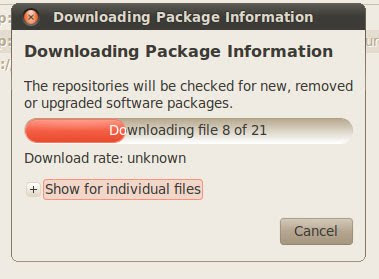
Application package that you just add will be loaded into a repository ... This will requiresome time, depending on how many packages you add. Please wait until thedownloading process is automatically completed and the window will be closed ...

well .. now the local repository has been successfully added, now is the time to try to install the applications you want. Go ke System> Administration> Synaptic Package Manager to run "Synaptic" ...

Fill in your password when prompted ...

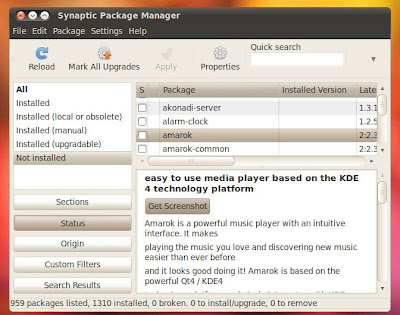
After Synaptic run ... behold, the application you want has been added and is ready tobe installed ....

Good luck ..
adapted from : Boja

Read more >>

Tutorial make Float Image in Blogspot

8:03 PM

(2) Comments

Meet again with the trick-id, in this post I will explain about floating image i the blog.
Float Image, maybe you've seen the float image. Float Image is an image that floated in the blog, pictures are always in place even though the blog on the scroll. For clarity, the following are examples of the float image, the example here


You see this picture?


That is the float image, if you want to create and put it in your blog, I will explain in this post.
How to Create Float Image :
1. Login to your Blogger Account
2. Goto Design(Layout) -> Edit HTML
3. In your template, put this code above code ]]>
#float_image {
position:fixed;_position:absolute;bottom:0px;left:0px;clip:
inherit;_top:expression(document.documentElement.scrollTop+document.documentElement.clientHeight-this.clientHeight);_left:expression(document.documentElement.scrollLeft + document.documentElement.clientWidth - offsetWidth);}

the code with red colour are the position of the image, you can change it to right, left, bottom, and top

4. Then, put following code before

http://trick-id.blogspot.com is image link and http://i496.photobucket.com/albums/rr329/grandisyf/74.gif is the image url, change it with yours

5. The last steps is SAVE TEMPLATE
Now See the result, float image is in your blog

visit : trick-id.blogspot.com
Read more >>

Make Twitter Badge in Blogspot

7:57 PM

(0) Comments

Twitter is a website owned and operated by Twitter Inc., which offers a Micro-blogging social network that allows users to send and read messages are called tweets. Tweets are text posts to 140 characters are displayed on the user profile pages. Tweets can be seen outside, but the sender can restrict delivery of messages to their friends list only. Users can see the tweets of other writers known as followers.
All users can send and receive tweets via Twitter site, compatible external applications (mobile phones), or with a short message (SMS) available in certain countries. This site is based in San Bruno, California near San Francisco, where the site was first created. Twitter also has a server and an office in San Antonio, Texas and Boston, Massachusetts.
Since established in 2006 by Jack Dorsey, Twitter has gained popularity worldwide and currently has more than 100 million users. This is sometimes described as "SMS from the internet".
If you want put your profile badge in your blog, we can add twitter Widgets let you display Twitter updates on your website or social network page
Our widgets are compatible with any website and most social networks. Simply choose the one that matches where you would like to include it.
Ok, i will explain how to get the widget and put it in yur blog
1. First, login to your twitter
2. Goto www.twitter.com/about/resources/widgets
3. Click in My Website and Choose Profile Widget
4. Setup the Preferences, Appearance and Dimensions of your badge
5. After finish click Finish & Grab Code
6. Put the Code to HTML/Javascript Gadget in your blog

if you do not want trouble, here I provide the code


Change your_id with your twitter username.
You can change the red code to value that you want, for HTML colour code you can look here

source : visit trick-id.blogspot.com
Read more >>

lucky

How to Show the Contents of Blog (Contents Widget)

9:28 AM

(0) Comments

List of contents on the blog will allow visitors to find articles that sought, with table of contents on this blog will make the visitor feel more at home reading our blog, because we already give to all content available on our blog.
Another benefit of the list to fill in the blog is going to create a search engine like our blog, an implication will index all the pages that we display on the main page on the table of contents
Okay do not have wide-winded again, for those bloggers who are interested to install a list of content in his blog, the following steps:
1. Login to your blog
2. If already logged in, then if do not want difficulty, there is easy way, please click the button below to directly add a widget to your blog:


6. If you want to create manually, please goto Design -> Add Gadget ->HTML/Javascript
7. Put the following code to HTML/Javascript Gadget
2px solid rgb(51, 255, 51); overflow: auto; height: "350px;" margin="5px" ;>


Widget By: [blog-triks]

Explanation:
For the red color code please change its value according to taste
Change blog-triks.blogspot.com with each blog url:)
var numposts: The number of posts displayed
var showpostdate: displays the date (false means not shown)
var showpostsummary: displays a summary of posts
var numchar: number of characters post summary
rgb (51, ​​255, 51) border color table of contents

source visit>> /trick-id.blogspot.com
Read more >>

lucky

, ,