Showing posts with label modification tricks. Show all posts

Air Display Apps Make iPad as Second Screen From Monitor computer

1:04 AM

(1) Comments

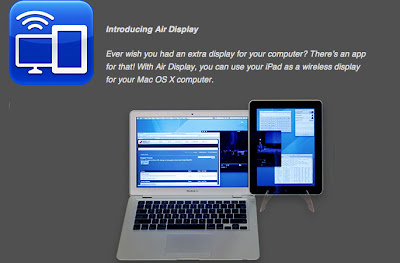
Air Display iPad screen seems quite wide enough fun when used as a second monitor to your computer. To do so, you can add to the list of Air Display app on the iPad. as well as a second monitor, you can enable the iPad to display images exactly as they appear on the primary monitor (mirror), or make it as an additional area to expand what is shown the main monitor (extended). Difference, you do not need a cable to connect the iPad to a computer.

Not only as a secondary monitor, the application also allows the iPad to be used as the equivalent controller as a keyboard or mouse. This application can be used to connect to a computer running windows or Mac.
Air Display Apps Make iPad as Second Screen From Monitor computer
Read more >>

How to insert Image in Facebook Chat

8:47 PM

(2) Comments

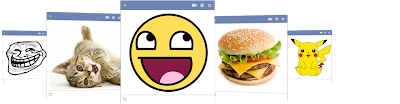
At present many interesting features provided by Facebook to captivate the hearts of lovers facebook to fix the constant of the side view, and even chat facilities are provided, have a chat before the fix by adding Emotion, and even video chat, but this time re-adding facebook features like the emotion that one could as add a picture to chat. You can insert an image via Facebook chat.

One way is to use Facebook Chat facility is owned by Maker Codes Smileyti.me site.
Facebook Chat

You can upload your images to be sent at the site smileyti.me. Next, the code will appear on the page Chatting up this site. And, if you want to send the picture, you can simply copy-paste the code on your Facebook page chat, and the image will appear.

Create Facebook smiley chat codes from any image and post them into your Facebook chat.

How to insert Image in Facebook Chat
Get started with 3 easy steps:

Step One > Open smileyti.me > Click the “Choose File” Button and choose an image from your computer

Step Two > Click the “Upload Now” button
upload image to Facebook Chat

Step Three > Paste the code to Facebook Chat
Example :
[[375037352572362]] [[375037339239030]] [[375037342572363]] [[375037345905696]] [[375037349239029]] [[375037472572350]] [[375037469239017]] [[375037479239016]] [[375037475905683]]
[[375037462572351]] [[375037569239007]] [[375037562572341]] [[375037565905674]] [[375037555905675]] [[375037559239008]] [[375037669238997]] [[375037665905664]] [[375037672572330]]
[[375037675905663]] [[375037682572329]] [[375037772572320]] [[375037775905653]] [[375037762572321]] [[375037765905654]] [[375037769238987]] [[375037955905635]] [[375037939238970]]
[[375037962572301]] [[375037929238971]] [[375037959238968]] [[375038099238954]] [[375038102572287]] [[375038105905620]] [[375038109238953]] [[375038112572286]] [[375038269238937]]
[[375038262572271]] [[375038272572270]] [[375038295905601]] [[375038292572268]] [[375038485905582]] [[375038479238916]] [[375038475905583]] [[375038472572250]] [[375038482572249]]
[[375038632572234]] [[375038639238900]] [[375038642572233]] [[375038635905567]] [[375038629238901]] [[375038765905554]] [[375038755905555]] [[375038762572221]] [[375038752572222]]
[[375038772572220]] [[375038902572207]] [[375038925905538]] [[375038899238874]] [[375038919238872]] [[375038922572205]] [[375039145905516]] [[375039155905515]] [[375039152572182]]
[[375039142572183]] [[375039149238849]] [[375039252572172]] [[375039232572174]] [[375039239238840]] [[375039249238839]] [[375039235905507]] [[375039412572156]] [[375039405905490]]
[[375039389238825]] [[375039399238824]] [[375039409238823]] [[375039552572142]] [[375039555905475]] [[375039545905476]] [[375039559238808]] [[375039549238809]] [[375039779238786]]

And the result is like this :
insert Image in Facebook Chat
that's it, so make a different chat with your facebook friends
Read more >>

How to Change Email Settings in Facebook

1:03 PM

(0) Comments

How to Change Email Settings in Facebook ~ Some time ago, the number one social networking world, Facebook has changed the email users using address@facebook.com. This they did without any notice.
so that measures, many facebooker who was troubled. Not only that, the new email delivery to mobile users rose up mess.
Change Email Settings in Facebook

However, it turns out you can also change the email addresses with ease

The following are the steps you have to do.
  • Access your Facebook timeline
  • Go to page About
  •  There, you will see Contact Info. There, you will see there an email with address@facebook.com. You can edit the address. 
  • On the Contact Info page, you will be able to see two email addresses. You can choose to hide or display the email address in the timeline. 
Unfortunately, you will not be able to delete the email from Facebook. However, you can change the name of the email as you wish. And, these changes can only be changed once. Change Email Settings in Facebook
Read more >>

Read BBM Secretly From Sender

10:34 PM

(1) Comments

For users of BBM (Blackberry Messenger) are already familiar with Blackberry application this seed must already know, when he received a BBM message, the sender will receive notification in the form of a check with the letter D to indicate that the message to the recipient (Delivered). A letter will then be changed to R as you read the message (read).

At some point, of course there are conditions where you are so curious to read a message of fuel received, but not known by the sender, because they do not want further communication.

In fact, there are techniques to remain able to read the message without sending notification to the sender R. Here's how:
Before you can do this, there is a setting to do.

1. Run the Blackberry Messenger application.
 2. Click the button menu, choose Options.
 3. Scroll to the Save Chat History and change the option Never a Device or Media Card.

4. Click OK if you appear like this.
 5. Press the back button, click Save.
Now you should be able to read incoming messages without sending fuel R notification to the sender. But with the following techniques.

6. When there is an incoming message, open the fuel but not through the notification center under the bookmark hours.


7. Navigate highlight to the sender, but do not rush to open the message.
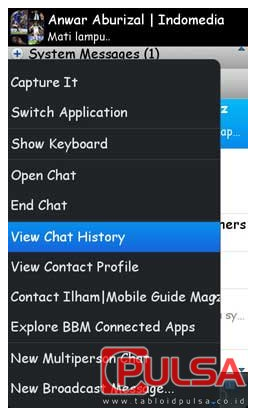
8. Click on the menu, select View Chat History
9. Open a last resort or by the date when the message is sent.
10. And you can freely read the message without the knowledge of the sender.
In addition to using manual techniques such as the above there are other ways, namely by using the help of an application called Peep It.

11. Applications Peep It can be obtained from the App World to buy it for $ 2.99, or try this application in the trial version for free
 
12. Settings in steps 1-5 should also be done while using the application Peep It.
13. When receiving a message that you want to fuel "voyeur", you simply open the application Peep It.

14. Select the desired contact from the list.
15. You can freely read the message without sending a notification received "R" to the sender with greater ease. (Anwar Aburizal)
via > tabloidpulsa.co.id
Read more >>

Activate Flip 3D by Mouse

2:43 AM

(0) Comments


Activate Flip 3D via Mouse
Windows operating system is now known as the reliability of the graphics display, and one of them is a 3D flip. Well, below is how to enable the 3D flip by moving the mouse at the end of the screen, but in fact the trick is not easy, because often we find the failure.
Well, in anticipation of failure, you can use the Vista Flip 3D activator. You can download the http://notj.net/flip3D/windows_vista_flip_3d_activator.html
you can just install the tool, and check by moving the cursor to the end of the screen.
You can just mark the desired mouse button. As long as you turn on the 3D flip. You can use the mouse scroll the window, and click to activate it.
This application is also able to display your favorite wallpaper.
Utility is quite light and small, with consumption of the system only 2mb. So you do not need to hesitate system resource will be exhausted
Read more >>

Enjoying Google Music service

2:22 AM

(1) Comments

Google Music is an online storage service where you can store up to 20,000 songs in Google's cloud servers. That way, you can upload your favorite songs at home, and listened to it in the office without having to sacrifice hard drive space. The main problem is the service itself is only limited to the United States alone, but with a few tricks, you can enjoy it.

Google Music serviceHere are the steps you need to do to be able to enjoy a Google Music service.

1. to use this service, you must sign in using your Google account on page Music.Google.com. But Google can identify your location outside the United States through the IP address being used. It will display a warning that this service is only available to U.S. only.

2. This service is a way to outsmart the help of TunnelBear applications. With this application, you can use the IP address of the location of the Americans through the VPN network. Google Music itself requires an IP address when the first Americans to register. After that you can use this service anywhere using free IP address.

TunnelBear3. Download an application at the address TunnelBear www.tunnelbear.com / install. Click download for PC or Mac, then install the application.

4. Do register early using the email address. After you do the email confirmation is received, then the application is ready for use.

5. After sign in choose the free option. Click next if it is. To use the application, click the play button until the status becomes ON. Wait until the status becomes connected. When you are running, then a graph showing the connection will appear.

Google Music service
6. Go back to Google Music Website  and do sign in again. Must have been accessible. After that download Music Manager Application is used to upload music files. Install the application and sign in using the same account when you sign up on Google Music. If you have reached this step, you can close the TunnelBear (This application is used only to sign in at the Google Music only)

7. Specify the default folder where the music files will be uploaded. To upload, select the music file and press the upload button, then click Go to Google Music to check whether it has been entered in the account or not.

9. To see the music files already on the Upload Songs click on the library. File will be displayed in the main window; here you can play the songs, adding to the play list. Or do edit the info...

In this way and hopefully useful Google Music Service can be enjoyed anywhere...
Read more >>

Dropbox Storage File On Android

7:50 PM

(0) Comments

Dropbox Storage File On Android

Dropbox is an application that offers online storage for free to users of up to 2 GB. Although the amount of storage space offered by a relatively small, Dropbox is an online storage application that is very popular in Google Play.

With Dropbox, you can save the online document, image and video to your Dropbox server through which you can download an application from Google Play. Than through the mobile application, users can also download a desktop application to install a bias in Pc with Windows or Mac operating system. After you install Dropbox to the PC and phone, then you can easily upload files easily to a server in one step so that your files are automatically stored on the PC, phone and web as well.
Dropbox Storage File On Android
There are several ways to upload files to the server, the first when you use a PC, after installing the desktop application of Dropbox, then there will be in My Documents folder called Dropbox. To upload, you simply drag and drop files into the folder. Whereas for the second way, you can upload through the web site dropbox.com. While with your own android phone users can now choose to upload your photos and videos automatically to the Dropbox server. You can also share files to your friends by sending a link or ask a collaborator.

Collaborator allows you and your friends to share files and have the same right to edit the file. Pulses to reduce costs please set the upload by using the wi-fi only. Whereas if you have subscribed to a data packet. You can use the wi-fi channels and packet data from the operator.
Read more >>

Tips Windows Phone 7.5 Install Applications / Games from Marketplace

4:39 AM

(8) Comments

Windows phone 7.5
if you have an iPhone application store called the Apps Store, Android Market and Android Have / Google Play, so Windows Phone also does not want to lose a place to download and install the application / game that is Marketplace. Well, for those who are new to Windows Phone and want to download and install a free application from the marketplace, here are the steps:

A. Marketplace open the menu, if this is the first time you open the marketplace, then this application ask you to sign in with a Windows Live ID. Previously, you must register (list), to have the Windows Live ID.
2. Windows Live ID account bias obtained by enrolling when you first turn on Windows Mobile Phone. From here you can have the keys create one. It also can visit the site www.live.com via pc, select the sign up.
3. Fill each column with the required information that is user Windows Live ID, Password, and Email address of the main, follow the next steps by pressing the next button.
4. Select your country / region from the list, enter your date of birth, and then select Accept at The Marketplace Terms of Use.
Windows Live ID5. after you press a key or Accept received, a confirmation screen will automatically display the gamer tag, or re-view the first application details to complete the installation or purchase, and select Done.
6. After that you will be prompted to install the Sky Drive is an application provided by Microsoft, to save the file and can access it from virtually any device, anywhere, and anytime, then select install.
7. after that you will be prompted to restart the phone by selecting a close, if you receive an error message "App is not available" or "item not available" restarted marketplace and try again.
8. From here you can already download the application. Marketplace of how open the home screen or a list of applications.
9. looking for an application / game in want and then install, select install to download and install, choose Allow to continue the installation process, wait until the install is complete, the application is ready to run, into the game installation folder games.
Read more >>

Change the Symbian Phone Become Hostspot

9:19 AM

(0) Comments

Nokia symbian phone users do not need to envy the mobile OS Android and iPhone. If the phone with the latest operating system is called a bias into the process of tethering via wifi hotspot, the phone also turns can Symbian. Although in different ways and have to use third-party applications.
Change the Symbian Phone Become Hostspot

The steps that must be done:

1. Install JoikuSpot application through Ovi Store by running the Ovi Store, Ovi Store search of applications by selecting the Search menu and then type the JoikuSpot. Then select the application


2. Select Download to install this application on mobile phones JoikuSpot. Wait until the download and installation is completed, once completed, Select Launch to run the application JoikuSpot. Then the application will give the command to restart the phone and complete the installation process.
Change the Symbian Phone Become Hostspot 
3. after the restart process is complete, select the application by selecting the JoikuSpot icon in the menu, then the disclaimer window will appear, then press OK.


4. when a prompt appears "allow sharing Your Internet Connection with External Devices?" select Yes.


5. select APN connections are used ( with sim card you are using). Wait until the process is complete.


6. to access the Hotspot, connect your PC or laptop on a symbian phone that has become a hotspot, turn on the wifi connection and search for JoikuSpot HotSpot then right-click on the connection JoikuSpot and then Connect.


7. wait until the connection is connected, if the laptop is connected to wifi then you are able to use the internet on a laptop using JoikuSpot HotSpot

 
8. Use the Settings menu to set as desired, to finish Select Options> Stop to stop the connection JoikuSpot


Read more >>

Wondershare MobileGo Android

7:49 PM

(1) Comments

Wondershare MobileGo Android

Wondershare MobileGo Many Functions of the Application 

"One application of this type is worth a try is the "Wondershare MobileGo". Like the Android SDK, Wondershare MobileGo also features "screen shot."

Wondershare MobileGo AndroidHp connected with PC, in order to synchronize the various functions generally require the PC Suite or mobile phone tools built from HP. For Android, usually known as SDK. But the obstacles, a great addition to the installer file, you are also required additional file updates.

Well, that simpler is better you use the "Mobile Manager" third party. With a much simpler process, the application is true that the facility did not offer much different from the android SDK.

For example, the backup / restore data, transfer contacts, transfer audio / video / photos. Read / create / reply sms to install / uninstall an application. One application of this type is worth a try is the "Wondershare MobileGo". Like the Android SDK, Wondershare MobileGo also features "screen shot".

The steps for using this application :

1. Download Wondershare MobilGo Application of
  http://www.Wondershare.com/android-manager/
 
2. install to the PC, run it and connect the HP to PC using data cable or WiFi

 
3. If HP is not already installed the USB drivers on PC, Wondershare MobileGo application will automatically
  download it from internet and install it to your PC.

4. once connected, you are utilizing the facilities offered in this application.


Read more >>

Access BlackBerry Messanger from PC

7:35 PM

(6) Comments

Access BlackBerry Messanger from PC
Almost all BlackBerry users would agree that the BlackBerry Messenger is so addictive, up-to some RIM smartphone users are claiming that the reason was to survive using the BlackBerry Messenger application is exclusive even though tempted by other operating systems are said to be smarter. 

Not new if the user spends most of his time when holding the Blackberry to BBM's. But you know, there is an unusual way of fun for fuel-an? Namely by using a PC, so you can be faster to type using a computer keyboard and read more comfortably through the monitor.Here's how:

1. Download application at http://www.fixmo.com/fwm Fixmo Web Messenger using the BlackBerry browser.Once the download is complete, the application will install automatically.


2. Perform the required settings for Finalize installation Fixmo Web Messenger application. 


3. first time using this application, you need an Fixmo Web Messenger. Select "I need an account" to create an account. 

4. Enter your current email address, create a password (password) and repeat on the form provided. Click Register. 

5. If successful, it will connect and cancel the display appears, select Connect to directly connect the application.

 6. Now turn on your PC and open the internet browser. The way we did this time web-based, unlike the methods that have been discussed previously, by using the softwere "SOTI Pocket Controller Pro". Go to Page http://www.fixmo.com/fwm. 

7. enter your email address and password you created earlier8. now you have a bias with an easy-BBM using the PC.
Access BlackBerry Messanger from PC

Because web-based, you can actually control the fuel is not only through the PC, but through another device that has a browser. Blackberry you also should not be adjacent to the PC. Provided that the application Fixmo Web Messenger on Blackberry connected (run)
Read more >>

Create a Timeline/kronology Facebook New

7:51 AM

(6) Comments


Lately Timeline view facebook a warm conversation in society, not because something very excited yet because facebook is starting automatically upgraded at some facebook, actually this look long, but maybe for some people who do not enjoy the view, for that I will share ways to make an appearance in Timeline facebook  you with three ways, .. ok...

Here I give a tutorial to enable facebook with 3 steps.

  1.      Open a page about the timeline here http://www.facebook.com/about/timeline
  2.      Then click Get Timeline / Get chronology.
  3.      Then click Publish Now / Publish Now.

Now try to go into your profile, certain timeline is active, and please enjoy the new look of the timeline or also called kronology facebook in your account. not easy, please share to your friends.
Avoid viruses and spam on facebook
Activate the video call on facebook
hide the page owners on facebook
Read more >>

Shortcuts in using Google +

12:04 AM

(0) Comments

The following is a shortcut that is we use the Surf the Google +
Already have a Google account + and still busy learning how to play in it? I had a chat leaked sheet that will really help you to be more familiar with Google +. Here they are ...

1. To write a letter THICK, add the asterisk at the beginning and end of the word: * word *, example: * * will be TeknoUp TeknoUp

2. To write italics, add an underscore at the beginning and end of words: _kata_, example: _TeknoUp_ will be TeknoUp

3. To write a letter with a strikethrough, add a dash at the beginning and end of words:-He said, EXAMPLE:-TeknoUp-will be TeknoUp.

4. Mention of friends in your post by adding + or @ at the beginning of the word: + skyvillezz or @ skyvillezz

5. Sending a Private Message by sharing post on certain people, and disable reshare.

6. Click the timestamp on a post will display the post with a permalink

7. Button GREEN: Those who are not in your circle, can see your postings.

BLUE button: Only those who are in the circle you can see these postings, except if the post is to share.

8. hotkeys:
- Space: to scroll down through the Stream
- Shift + Space to scroll up Stream
- A: Scroll down to next Google + stream update (scroll down to see the next Google + stream)
- K: Scroll up to previous Google + stream update (scroll up to see the previous update Google + stream)
- QQ: Jump to chat (Pressing twice Q moving your cursor to the search box in the 'chat' from Google +)

-Space: Scroll down the stream by regular intervals (Scroll down at regular intervals)

+ Shift-Space: Scroll up stream by regular intervals (Scroll up at regular intervals)

-Enter: When a stream update is selected Enter key moves your cursor to the comment box (When a stream update is selected Enter move your cursor to the comment box)

Tab + Enter: Submit Comments: Submitting a comment
- Return: Start comment (start Komtar)
- Tab Return: End Comment (end comment)

9. To prevent others from sharing your post, click the arrow located on the top right of the post, then choose 'Disable reshare'.

10. Click on the +1 button in a post, is synonymous with 'Like' on Facebook. Click on the +1 button once again, will cancel the 'Like' previously created.

11. Using a +1 on a posting will not make the post on the list +1 page in your possession. Unless +1 done via the web.

link from forumdetik 
 
Read more >>

how to add a Repository

5:25 AM

(0) Comments


hello everyone, after a previous post, which of course also discusses ubuntu, this time I'll post how to add repository, this post I made ​​after looking everywhere finally stuck in his blog mas Boja, this post I created primarily to help rema
stering job and at the request of my friends, of course, with this I hope the friends linuxer better understand,and one thing I wanted to add thanks for Cambodia which already provides its ways, well just go ahead, that we want to add today the local repository for ubuntu 10.04Lts
Ubuntu - Ubuntu 10.04 comes with many packages that have been included with it.However, not everything we want or what we need we can get. Installer Ubuntu desktopversion, for example, has dilengkapai sharing of the application package, but usually is the application of a general nature. Then if we can not add their own applications that we
want? ... can certainly, way is to install an application package that we want manually.10:04 Ubuntu repositories has provided thousands of application packages that we can use. But to be able to install the application, it takes an internet connection to connect to the server Ubuntu repositories.

For users of Ubuntu 10.04 but has no direct Internet connection, you need not worry, youcan install the packages Ubuntu applications by adding their own local repository that you can save to CD / DVD or on your computer hard disk. All you need is a package ofextras Ubuntu 10.04, you can get by downloading their own way through the cafe ororder a CD / DVD extras Ubuntu 10.04. How to add your own local repository that? ..The following are ways you can try to do;


We will convey how to add
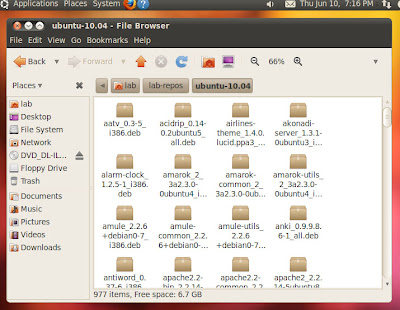
a local repository that is stored on a hard drive. Please copyall the extras Ubuntu 10.04 application package that you have into your hard disk, in this example we store it in/home/lab/lab-repos/ubuntu-10.04/

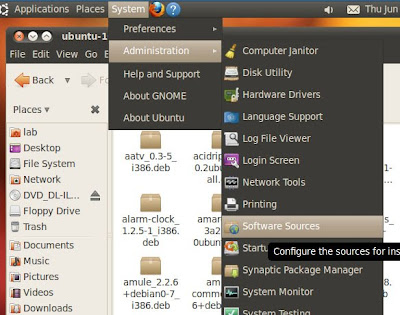
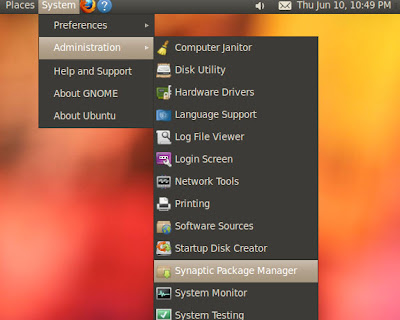
Next, go to system>Administration>Software Sources to run aplikasi
"Software Sources"...


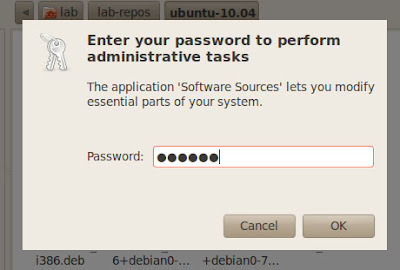
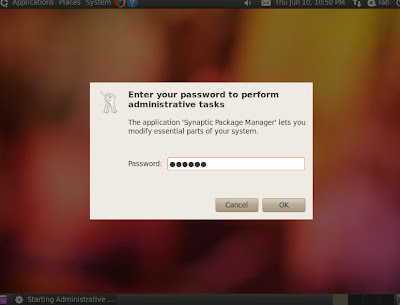
Please enter your password when prompted ...

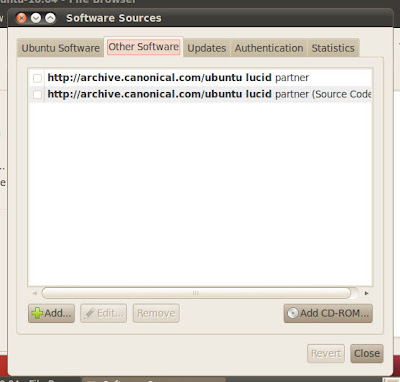
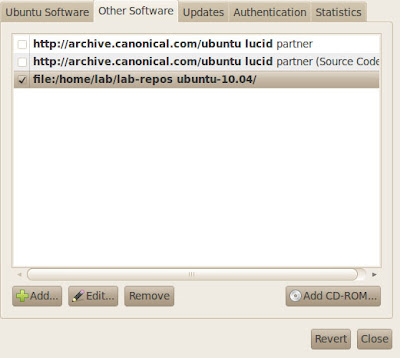
Once the Software Sources window opens, please remove all the check checboxcontained on the tab "Ubuntu Software" (we assume you have absolutely no internetconnection). After that please you to the second tab "Other Software"

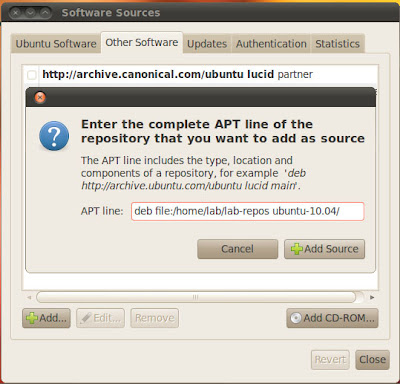
Add the source of new software by pressing the "Add". In the dialog window thatappears, fill with APT line like this ..
deb file:/home/lab/lab-repos ubuntu-10.04/

Adjust to the location where to save the application package extras that you have ... then press the "Add Source" to add ..

Source software has managed to add new. Press the "Close" to continue the nextprocess ...S

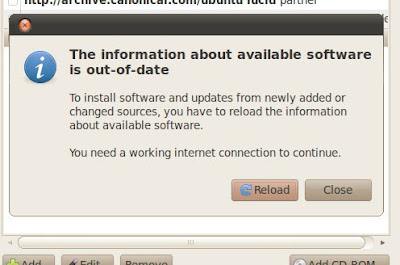
Next you will be asked to do a refresher on changes to the software source. Press the "Reload" to update the Ubuntu repositories ...

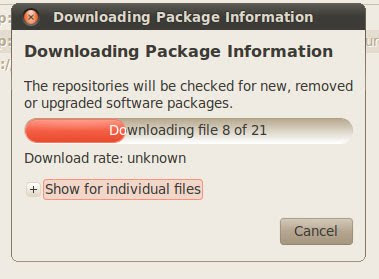
Application package that you just add will be loaded into a repository ... This will requiresome time, depending on how many packages you add. Please wait until thedownloading process is automatically completed and the window will be closed ...

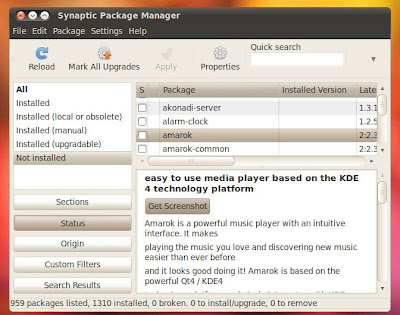
well .. now the local repository has been successfully added, now is the time to try to install the applications you want. Go ke System> Administration> Synaptic Package Manager to run "Synaptic" ...

Fill in your password when prompted ...

After Synaptic run ... behold, the application you want has been added and is ready tobe installed ....

Good luck ..
adapted from : Boja

Read more >>